Attachments
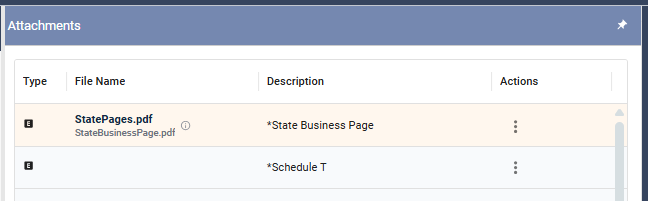
At times you may need to attach supporting documentation to a return. This may include state-required documents, such as a State Business Page needed for e-filing, or internal documents you want to store with the return for reference by your team.
Accessing Attachments
The Attachments icon, located in the vertical icon bar, opens the Attachments pane where external files can be added to the return. The icon appears as a paper clip. Selecting this icon will open the Attachments window.
The top portion of the window lists all possible state-specified attachments. Required attachments are marked with an asterisk (*), and some attachments may be conditionally required based on the data entered in the return.
To attach a file to a listed attachment, drag the file from your computer onto the appropriate attachment row. When the row highlights, release the file.
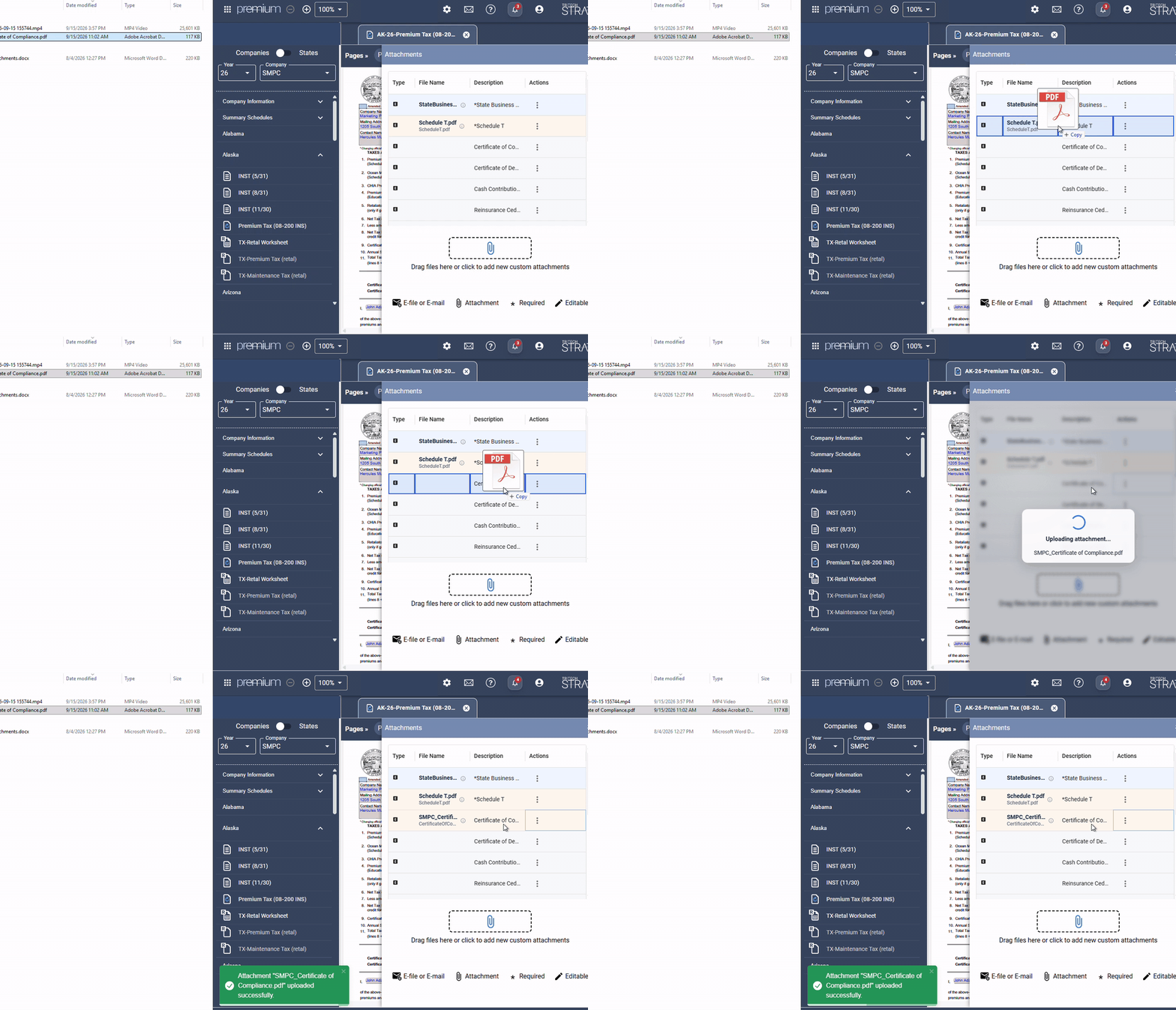
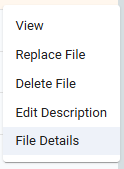
You can also select the three dots menu next to the attachment name and select Upload File. Once uploaded, the file name appears in the File Name column. To replace an existing file, select the three dots menu and select Replace File.
Adding Additional Attachments
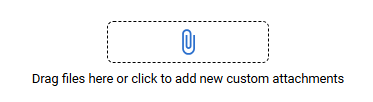
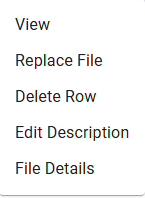
To attach a file that is not listed, select the paper clip in the drop area or drag the file from your computer into the drop area at the bottom of the Attachments pane. After the upload completes, the file appears at the bottom of the list. To remove it, select the three dots menu for the attachment and select Delete Row.
Editing Attachment Details
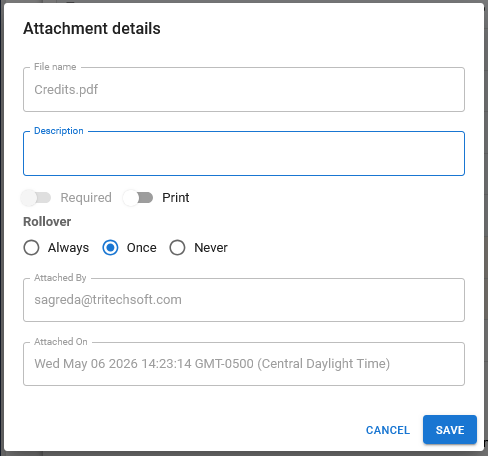
For all attachments, additional details can be modified by clicking the three dots menu next to the file and selecting Edit Description. From this option, you can add a description and adjust the print and rollover settings for the attachment.

Attachment Rollover
Attachments marked for rollover will automatically carry forward to the next year’s return, regardless of when the rollover option is selected.
If the next year’s return is already activated when the attachment is marked for rollover, the attachment will immediately appear on the activated return. No deactivation or reactivation is required.
If the next year’s return has not yet been activated, the system will automatically bring forward any attachments marked for rollover when the return is later activated, either manually or through the auto-activation process.
How to Use Attachment Rollover
- Open the return containing the attachment.
- Locate the attachment and select file details.
- You can rollover Always, Once or Never.

- You can rollover Always, Once or Never.
- Save your changes.
A clock icon with a counterclockwise arrow will appear next to the attachment name to indicate that the attachment has been marked for rollover. The attachment will automatically appear in the corresponding location on the next year’s return.
Related Articles